exGENT (Gentoo) LiveCD with kernel 3.0.4

I’ve made a new version of exGENT (Gentoo) LiveCD. The old version of exGENT is from 2009. My new exGENT Linux system use Fluxbox as Desktop Environment and kernel 3.0.4-exton. Fluxbox is used because of its speed. The system language is English because I want to spread exGENT across the world. Quite new is that I’ve found a suitable installation program, in which a Grub installation (Grub Legacy) is included. Even old exGENT could be installed to hard disk, but only “manually”. I have replaced the Gentoo kernel with “my” special kernel 3.0.4-exton, with support for “extra everything”.

About
The best thing with exGENT is the premier autodetection of hardware and the ability to easily install the system to hard drive and/or USB stick. Installed programs: Among many others Firefox 7.0.1 (latest version), AbiWord, Audacious, Wicd, GParted, gFTP, Pidgin, Apache (Web server), and Cups. Furthermore compilation tools so that you can install programs from source the Gentoo way.

History
The predecessor to exGENT, Exton-Gentoo, was built completely from scratch. I.e. all its programs were compiled from source. As for exGENT I have “cheated” a bit. I.e. exGENT is based on another Gentoo-based distribution, but I have changed (almost) everything. The changes are so great that virtually nothing remains of the originally distribution.

exGENT Linux can in 5 – 10 min be installed to hard drive. This means that all of you who might hesitate to perform a normal Gentoo installation – which can take up to a couple of days – now have the chance to get this great Linux system on your computers very easy. Read below on how the installation works.

Kernel with support for almost anything
If you have a new or/and unusual hardware you should try exGENT. This is because the system (using kernel 3.0.4) supports “all forms of” hardware.

Default language
The default language (locale) is set to English.

Keyboard
The default keyboard layout is American (us). Change it by running the command setxkbmap se (for Sweden) or click on the Swedish flag in the menu under System.

Install exGENT to hard disk
Please read this INSTRUCTION.

Install exGENT to USB stick

Use the program exGENT2usb or this method, which is the best one. To start exGENT2USB instead: Open up a terminal and run the command exgent2usb (as root). Follow the instructions on the screen.

Login to Fluxbox
When you start up your computer from the disc you will end up in in X/Slim Login Manager. Login as the ordinary user live or as root (superuser) with password live respectively root.

Read more (if you understand Swedish)…

See a screenshot of the Desktop HERE.

DOWNLOAD
exGENT Linux can be downloaded from Sourceforge.netFast, secure and free downloads from the largest Open Source applications and software directory.

CruxEX 2011 Linux LiveCD

CruxEX 2011 Linux LiveCD is based on CRUX 2.7 (latest version), which is all Linux enthusiasts/nerds favorite OS. (CRUX is a lightweight, i686-optimized Linux distribution targeted at Experienced Linux users). CruxEX 2011 uses the Fluxbox Desktop environment. I have replaced the original Crux kernel 2.6.35.6 with “my” special kernel 2.6.37.2-exton, with support for “everything”.

Kernel 2.6.37.2 is the latest available stable kernel. Among all installed applications are Firefox, Thunderbird and Wicd. Furthermore compilation tools so that you can install programs from source.

Unique
CruxEX is – as my previous Crux-remasters EXTON-CR LXDE and EXTON-CR KDE – unique in the world. I.e. there is no other CRUX Live CD in any language (as far as I know). In any case, not for downloading.

Kernel with support for almost anything
If you have a new or/and unusual hardware you should try CruxEX. This is because the system (using kernel 2.6.37.2) supports “all forms of” hardware.

Default language
The default language (locale) is set to English.

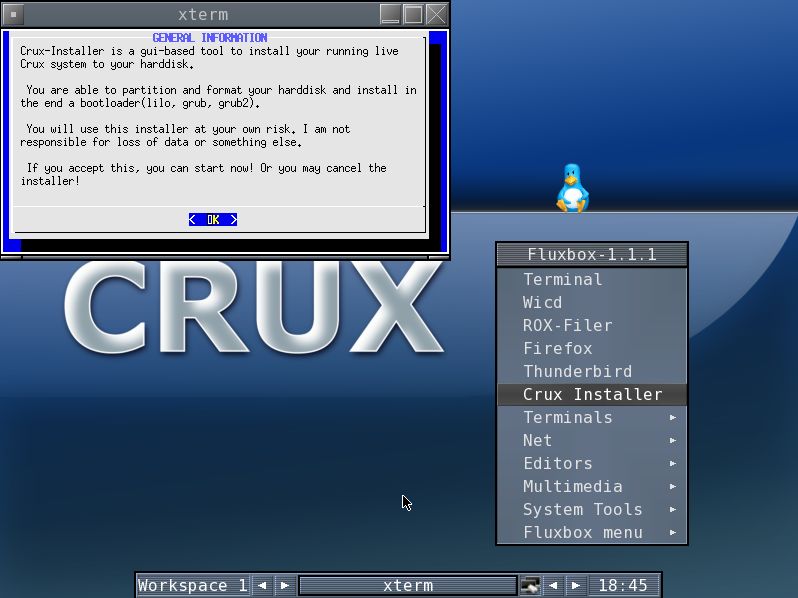
Install to hard disk with Crux Installer
CruxEX can be installed to the hard drive in live mode with Crux Installer, which can be expected to be perceived as positive by some. CRUX – original – contains neither Fluxbox, Gnome, KDE, LXDE, or any other desktop environment.

Login and X configuration
When you start up your computer from the disc you will end up in console mode. Login as the ordinary user linux or as root (superuser) with password linux respectively root. Then run the command startx to enjoy X and Fluxbox. You may need to run the xconfig command before the command startx. You can also (if necessary) edit the /etc/X11/xorg.conf file manually. Editing is done with the command nano /etc/X11/xorg.conf. Go down to the line “Device configured by xorgconfig” and “Section Device”. Replace Driver “vesa”with Driver “nv” if you have an Nvidia card or “radeon” if you have an ATI card. A little further down, you can also change your screen resolution if you wish. Note that you can alternatively first login and make changes to the X when you are in Fluxbox. Edit the xorg.conf file with Leafpad. Then restart Fluxbox. I. e. logout of from Fluxbox.

See a screenshot of the Desktop HERE. Read more about CruxEX HERE (in Swedish).

DOWNLOAD
You can download CruxEX 2011 from The Swedish Linux Society server for free.

md5sum for the ISO file, which is of 284 MB.

ExTiX – The Ultimate Linux System

What is ExTiX?
Previous versions of ExTiX were based on KNOPPIX/Debian. Version 7.0 of ExTiX was based on the Swiss Linux System paldo. Version 8 of ExTiX is based on Debian Sid. This version of ExTiX comes in two flavors. One of 690 MB with LXDE ” the Lightweight X11 Desktop Environment” (and Xfce4, Fluxbox, Awesome, Blackbox, Openbox and Lwm) and one of 1200 MB with KDE 4.5.3 – “a powerful graphical desktop environment”.

ExTiX 8 is thus based on Debian Sid and nothing else. I e there is no elements of Ubuntu or Linux Mint (or any other Linux System). ExTiX therefore differs from for example Linux Mint Debian Edition (LMDE) and DebEX-LMDE. Language support: English and Swedish. Default locale/language is English.

NEWS
This new version 8 of ExTiX Linux Live CD/DVD includes the 2.6.32-5 kernel by default, LXDE/KDE, AbiWord/OpenOffice, all development tools, GIMP, Skype (Free Internet Telephony), all win32-codecs, Vlc, GParted, Iceweasel (Firefox), Icedove (Thunderbird) and Synaptic Package Manager. UnionFS stacks your ExTiX ramdisk on top of the read-only filesystem on the CD/DVD, the effect being that you can install, and otherwise modify all of the files on the running system as though they were all writeable. The standard LXDE/KDE and System language is English. You can, however, easily change language and keyboard layout to Swedish after upstart of the system from the CD/DVD.

ExTiX 8 KDE is hosted by the Swedish Linux Society.

ExTiX 8 LXDE is hosted by Sourceforge.netFast, secure and free downloads from the largest Open Source applications and software directory.

md5sum för ExTiX 8 LXDE

md5sum för ExTiX 8 KDE

System Requirements
Intel-compatible CPU (i486 or better), 512 MB of RAM, a bootable DVD drive (IDE/ATAPI, Firewire, USB or SCSI), a standard SVGA-compatible graphics card, and a standard serial or PS/2 mouse, or IMPS/2-compatible USB Mouse.

How do I run ExTiX?
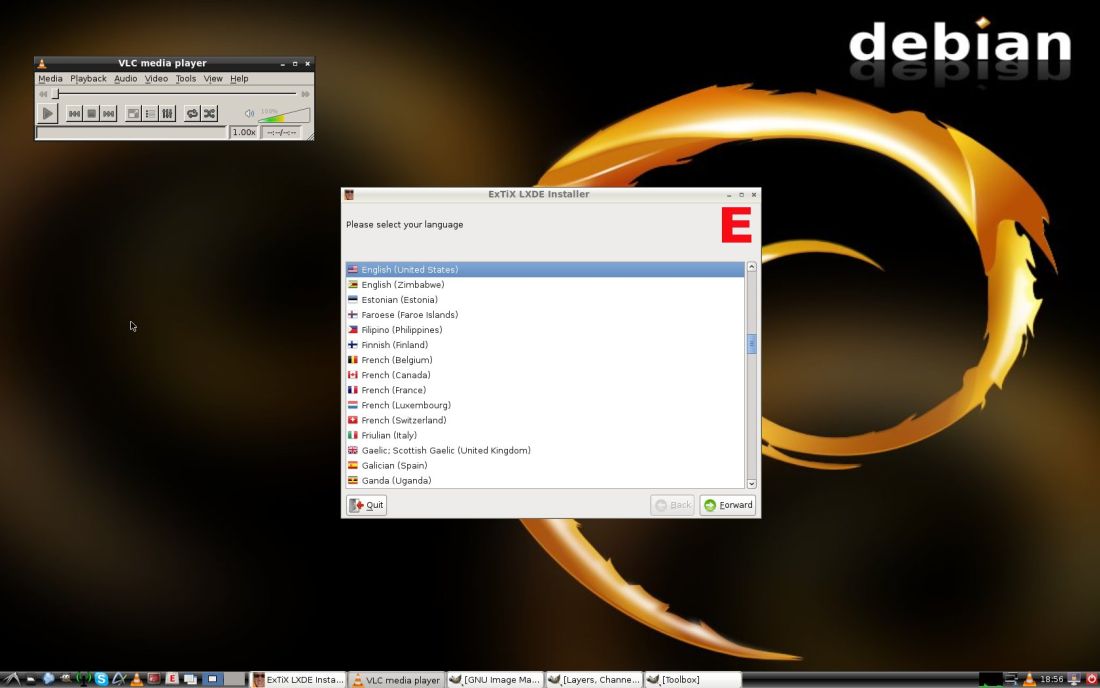
In order to start the CD/DVD, first adjust the boot list in the BIOS Setup of your computer to boot from CD/DVD (before the hard drive). Put the DVD in and restart the computer. You run ExTiX as root (superadmin) or as user. Root’s and user’s password is stocksund. ExTiX can also be installed to hard disk. Please use the start alternative Install ExTiX to harddisk and Debian Installer will start. The program is very easy to use. Be sure to have one install partition of about 6 GB ready in advance though. You can also first test to run ExTiX 8 KDE  and ExTiX 8 LXDE live and then start Live-Installer. Please read this INSTRUKTION first. If you want to install ExTiX 8 KDE on a USB-stick of at least 4 GB be sure to install GRUB in /dev/sdb. (On the USB-stick).

How do I install and remove programs?
ExTiX/Debian uses Apt/Synaptic. The most important commands are apt-get update and apt-get install program-name. You can read about package management with Apt HERE. Apt/Synaptic works extremely well. You can also install programs in ExTiX from source using the commands 1) ./configure –prefix=/usr 2) make 3) make install.

See this screenshot of ExTiX LXDE Desktop.

See this screenshot of ExTiX 8 KDE Desktop.

Other considerations

DISCLAIMER: This is experimental software. Use at your own risk. Under no circumstances may extix.se or exton.net be held liable for damage to hardware or software, lost data or other damage either direct or indirect caused by using this software. In some countries, cryptographic software may be subject to import/export restrictions or subject to software patents. This software may not be used or disseminated in those countries. otherwise, it is subject to the usual rules of the gpl license. If you do not wish to abide by these rules, you may not use or disseminate this software.

CD/DVD-label for ExTiX

DOWNLOAD

ExTiX 8 LXDE

ExTiX 8 KDE

www.extix.se